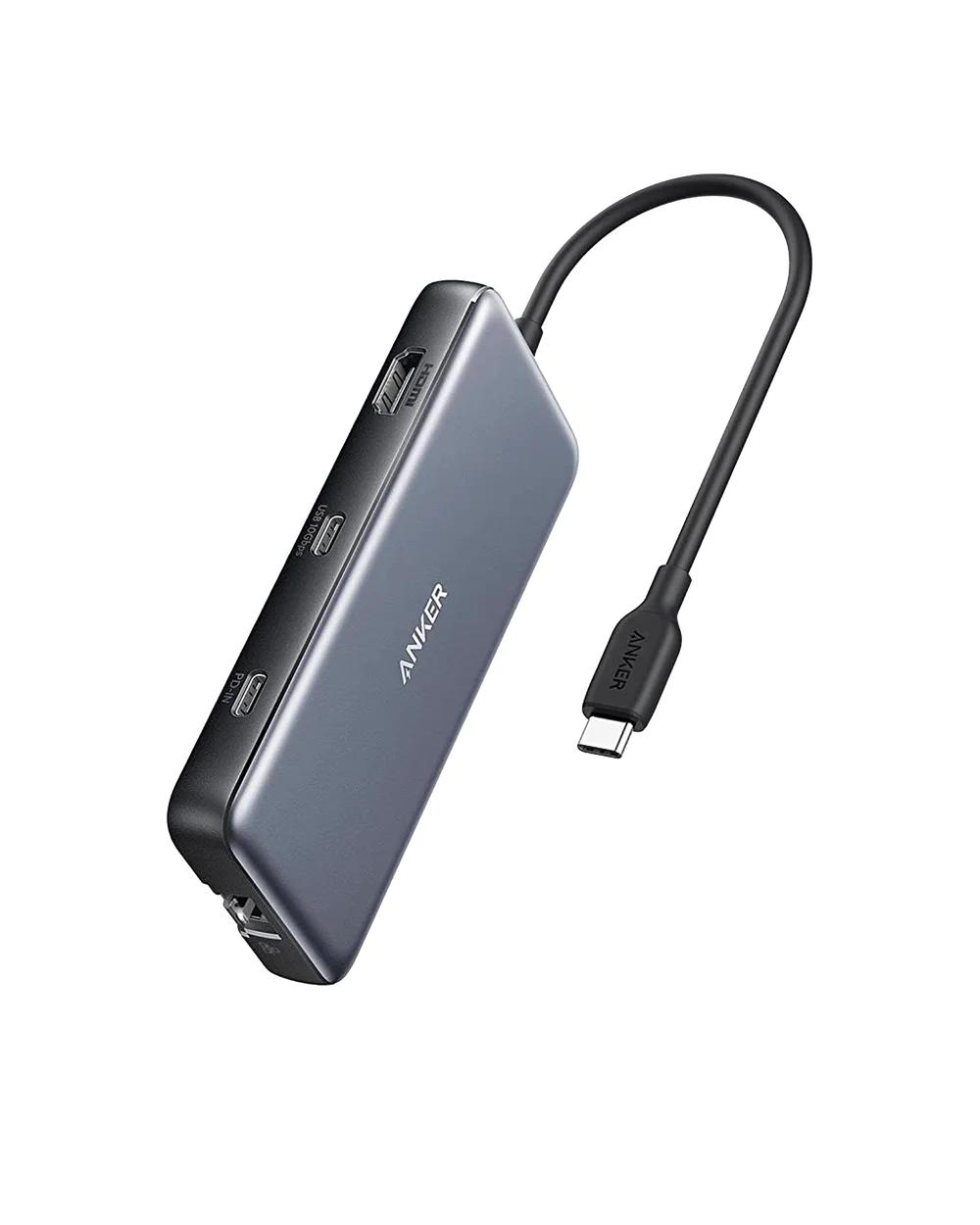
A USB-C plug tells you the connector shape. It doesn’t, by itself, tell you everything a port or cable can do. A little checking before you buy can save a lot of troubleshooting later.
Make a list of your connections.
Count what you need to plug in at the same time: a monitor, keyboard receiver, storage drive, network cable, or memory card. Match the hub to those connections. More ports aren’t automatically more useful if they aren’t the ones you need.
Check the laptop, not just the hub.
For a display, check that your laptop’s specific USB-C port supports video output and that the hub supports your monitor’s resolution and refresh rate. The manufacturer’s compatibility list is a better starting point than the connector alone. Support can vary between laptop models.
Read the charging details.
Pass-through charging uses a separate power source. Compare the power delivered to the laptop with the power it needs, and check the charger and cable requirements. A hub may reserve some incoming power for its own operation. Keep the manufacturer’s specifications close when comparing.
Match the hub to your laptop, your monitor, and the accessories you actually connect.